









Introduction
MODLR’s visual processes allow for low-code/no-code data transformation, with the versatile Visual Scripting Engine we launched recently. It is now available to all MODLR users.
Watch our first video for An Overview of the MODLR Visual Scripting Engine.
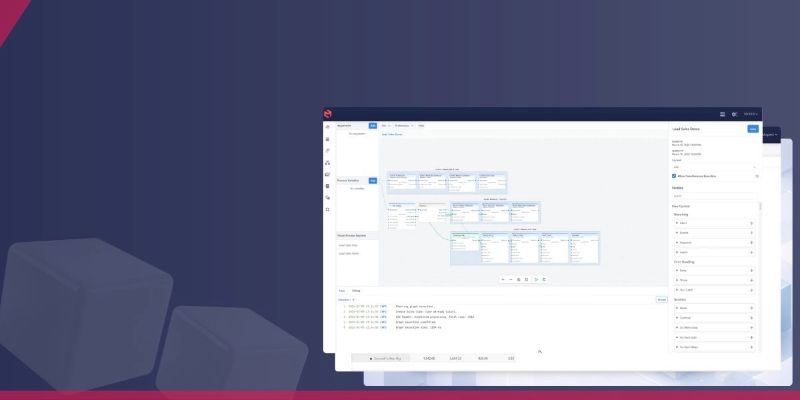
This tutorial is a step-by-step walk through on how to create a simple visual process in MODLR to archive a cube scenario into a CSV file. At the end, you will have a reusable process for exporting your data quickly and consistently, as you need it.
What You Will Learn
In this video you will learn how to:
- Extract cube data using a cube slice.
- Write that data into a CSV file
- Make the process reusable with a file name input
- Connect and run the full workflow
Here Are the Steps
Step 1: We Create a New Visual Process
First, go ahead and create a new visual process. Give it a clear, descriptive name so you can easily find it later. Once you click OK, you will be taken straight into your new process canvas where everything will be built.
Step 2: Add a Cube Slice Node
Next, we need to pull the data we want to archive. So. add a *Cube Slice node*. This is the step where we define what data we’re backing up. For example, you might choose the actual scenario from your Sales cube.
What this node does is simple: It reads the data and outputs it as rows — including all the elements and values.
Step 3: Add a CSV Writer Node
Now that we have the data, we need somewhere to send it. We add a *CSV Writer node*. This node takes the row data from the cube slice and writes it into a CSV file at a location you specify.
Step 4: Create a File Name Argument
To make this process flexible and reusable, we’ll add an input argument.
Create an argument called *file name*. This means every time you run the process, you will be prompted to enter a file name for your backup.
Here’s what we need to define when setting up the argument:
- Key → This is the internal variable name
- Display name → What the user sees
- Description → Helps explain what the input is for
- Default value → Optional, but useful for quick runs
Once all that is done, drag the argument into the file path input on the CSV writer.
Step 5: Connect the Workflow
Now we wire everything together.
- First, connect the *execution flow* so the cube slice runs before the CSV writer
- Then connect the *row data output* from the cube slice into the CSV writer
This tells the system exactly what data to write and when to do it.
Step 6: Run the Process
At this point, everything is set up and ready to go. Then you run the process.
You will be prompted to enter your file name, and the system will automatically export your cube scenario into a CSV file.
And that’s it. You have now built a simple, reusable, automated process to archive cube data into a CSV.
You will find that this will be particularly useful for:
- Making backups
- Data migration
- Sharing data outside MODLR
- Audit and record-keeping purposes
In a Nutshell
Here’s the entire flow of how to archive a cube slice to a CSV in MODLR:
- Create a visual process
- Add a cube slice to read data
- Add a CSV writer to export data
- Create a file name argument
- Connect execution and data flow
- Run and generate your CSV
Want to learn more?
- Watch Other Visual Process Videos from MODLR
Check out our Related Q&A
Related Q&A
What is archiving a cube scenario to CSV in MODLR?
Archiving a cube scenario to CSV in MODLR is the process of exporting cube data into a structured CSV file by using a visual process. This allows users to back up, share, or migrate their data outside the MODLR platform.
How do you export cube data to CSV in MODLR?
To export cube data to CSV in MODLR follow these steps::
- Create a visual process
- Add a cube slice node to extract data
- Add a CSV writer node
- Create a file name argument
- Connect execution and data flow
- Run the process to generate the CSV
What is a cube slice in MODLR?
A cube slice in MODLR is a node that extracts data from a selected cube and scenario. It outputs the data as rows, including elements and values, which can then be processed or exported.
What does the CSV writer node do?
The CSV writer node takes row-based data from the process and writes it into a CSV file in a specified location. It is used to export and store cube data externally.
Why use a file name argument in MODLR visual processes?
A file name argument allows users to dynamically name the output file when running the process. This makes the workflow reusable so that it is more flexible and can be applied for different export scenarios.
What are the benefits of archiving cube data to CSV?
Here are the many benefits of archiving cube data to CSV format:
- Creates reliable backups
- Enables data sharing outside of MODLR
- Supports data migration
- Helps with audit and compliance
- Reduces manual export effort
- To explore this feature, you can book a demo today.
.jpg)
-(1).png)